amazon

Showing posts with label Gaming. Show all posts

December 30, 2016

The ups and downs of wireless charging

The ups and downs of wireless charging

The purpose of the Weekend Debate is to look at both sides of the story; to get a true idea about a concept, or two competing concepts and hash it out and see where we all stand about this. We’ve had some really great debates in the past, and I thank you for that. But if I’m going to be really honest with myself, there is one thing that I have not debated. I have taken it for granted that it is great, and maybe that was premature on my part. Wireless charging is a concept that hearkens back to the beginning of my webOS days. I’ve loved it ever since then, but maybe I have been mistaken.
Wireless charging is one of those concepts to me that feels like I’m using “the future.” You set your phone down, and it charges. Easy. Cable charging, despite advancements like USB Type C and Lightning connectors that are reversible, still require two hands to complete. If you come in the house with an arm full of bags, or groceries, or kids, or whatever, you are not going to be plugging in your phone, because you need that arm. Not so with wireless charging. Down. Boom. Charging.


Not just for power

Some wireless chargers also have additional built in functionality. The Qi charger for the Moto 360, and the latest charging stand for the Samsung Gear S2 both serve the dual purpose of charging the watch, and turning it into a clock, perhaps for a bedside table. Sure, that may not be the definitive end to the debate, but it’s still a useful function beyond just putting gas in the tank. Other wireless chargers also serve to prop up a device so it can be useful while charging. Aukey’s Luna charger did much the same thing, along with – yes I’m going to that well again – webOS’s phone and tablet chargers.
Wireless charging also allows for phones to be more water and dust proof because there is no port needed to charge. Yes, there is a port needed for data transfer, but if that has a cover, you’ll be using it less because you charge every day, you don’t necessarily transfer data. So that eliminates wear-and tear on the port cover, and also eliminates the annoyance of having to open the cover every day. So there’s that.

And yet…

But wireless charging isn’t all lollipops and roses is it? I mean really when you stop and think about it, wireless charging can be a touch inconvenient at times as well. For one thing, when you set your phone down to charge, it’s ~down~. You’re not picking that phone up for anything because it will stop charging. Maybe that’s not such a bad thing, but to those of us who like to lounge on the couch with a charging phone, this might be a bit of a deal breaker.
Also consider the accuracy involved with wireless charging. Charging coils need to be aligned with each other in both the charger and the charging device, with some amount of room for error of course. But when the phone is on the charger, it’s there. A careless bump can knock the phone off its charger with no one being the wiser. You know what happens then? You wake up with a dead phone. Ruh-roh.
Like totally
Like totally

Roe vs. Wade…or something

Also, lest we forget there are two different standards out there – Qi and PMA. New chips are making it possible for phones like the Samsung Galaxy S6 series to be compatible with both standards, but still there are two standards. Phones that have come out in the past are not backwards compatible with the other standards, so this is something that is going to be an issue for some time. Plus, as long as carriers like AT&T still get to push around OEM’s we may see scenarios in the future where a phone is capable of accepting either, but is being forced to use one or the other.
Finally, remember that by and large, wireless charging is slower than its wired counterparts. It’s true that some wireless chargers are being advertised as fast-chargers, but how will that measure up against the “50% in 15 minutes” that other wired phones are boasting? Time will tell in this particular argument. But again, this is not one that I believe holds a lot of water, because our phones are meant to recharge while we recharge – over night.

palm touchstone 

Palm had the answer

Now, I don’t want to bang my Palm war drum too much, but it largely solved a couple of those problems by embedding magnets into its chargers and phones. Magnets ensured the phones are aligned properly, and in a pinch a phone could be picked up – charger and all – and used without disrupting the power flow. webOS also built in a Presentation Mode and a number of other features (such as automatic speakerphone while on charger) that negated a lot of naysayers at the time.
But anyway, now that we’ve taken a good look at both sides, where do you stand on the wireless charging fence? Are you a believer in a wire-free phone or do you need your juice so fast, air can’t deliver fast enough? Sound off below in the comments and let’s see if we can figure this out.

December 27, 2014

Alienware 17 (2014) Review

Alienware 17 (2014) Review


  • The Pros

    Sexy chassis; Colorful 1080p display with wide viewing angles; Customizable lighting; Excellent graphics and performance; Big and rich audio
  • The Cons

    Expensive; Heavy
  • Verdict

    The Alienware 17 gaming laptop retains the stunning looks and awesome display of its predecessor and adds a more powerful CPU and the latest Nvidia graphics.
    Alienware 17 (2014) Graphics


    The best just got better. Alienware has upped the gaming-laptop ante by adding the world's fastest notebook graphics -- the Nvidia GeForce GTX 880M -- to its award-winning 17-inch beast. The Alienware 17 ($3,358 as configured, starting at $1,499) continues to boast one of the best designs we've seen, along with a fun backlit keyboard, powerful speakers and a sweet full-HD display. The competition should be afraid. Editor's Note: Portions of this review appeared in our original review of the Alienware 17.

    Design

    We continue to be huge fans of the Alienware 17's redesign. It's like "Tron" and "Xanadu" had a baby -- a groovy, techie baby. The two-toned, gray, anodized-aluminum lid is topped with a black, soft-touch lip. It's a handsome contrast for the backlit alien head and the pair of tantalizing LEDs intersecting diagonally near the bottom of the lid.
    Alienware 17 (2014) Design
    The notebook's interior is coated in a luxurious, black, soft-touch finish. A matte dark-gray band sits at the top of the deck. Directly below, a thin, glossy strip leads to a fairly large power button on the left side. The keyboard, power button and touchpad sport an eerie, blue glow that can be changed to a plethora of colors.
    MORE: Laptop Buying Guide: 9 Essential Tips
    The 17.9 x 12.9 x 2.26~2.23-inch Alienware 17 is a behemoth, weighing a portly 9.2 pounds. It makes the 8.6-pound Digital Storm Krypton (16.3 x 11.26 x 1.81 inches) seem small by comparison. However, the 9.4-pound, 16.1 x 12.5 x 0.67~1.96-inch ASUS G750JZis outweighs Alienware's glittering monster.
    It's like Tron and Xanadu had a baby -- a groovy, techie baby.


    Lighting

    Alienware 17 (2014) Lighting
    It just wouldn't be an Alienware without the over-the-top light show. The company wrapped a strip of light around the sides of the laptop and backlighting for the touchpad. The presentation was impressive under our office's fluorescent lights, but the notebook really shines in the dark.
    Just like the previous generation, the AlienFX software in the Alienware Command Center lets you choose from one of 13 preloaded lighting profiles or create a custom profile. Creating a profile is fairly easy: After selecting the New Theme option, users can assign 20 colors to each of the notebook's 10 zones.
    Alienware 17 (2014) Design Lighting
    The fun really begins when you add the Morph and Pulse effects. The Morph effect cycles between two designated colors, while Pulse makes the lights flash on and off at a set tempo. A profile can be as basic or complex as you want. Best of all, you can program specific settings for certain profiles using the AlienAdrenaline utility.
    Alienware has also partnered with several popular game developers to create custom profiles for specific titles. The company currently offers 60 titles, including "Metro: Last Light," "Orcs Must Die 2," and "Hotline Miami."

    Display

    Alienware 17 (2014) Display
    Dishing out vivid hues and capturing sharp details, the Alienware's 17.3-inch matte anti-glare 1920 x 1080-pixel display continues to be one of the best-looking in its class. Text looks crisp, and the viewing angles are generous enough to comfortably accommodate three people.
    When watching the 1080p "Belle" trailer, we were captivated by the contrast between the lead actress's café au lait skin and her rose-pink dress. Details were sharp enough to make out the floral patterns on the shimmery material, along with individual hairs in the lady's cascading brown ringlets.
    The panel continued to impress as we played "Metro: Last Light," delivering deep, rich blacks; somber grays; and pops of red, yellow and green. We were especially impressed by the waves of heat radiating from the large grill used to cook food for our unit.
    Alienware 17 (2014) Display Performance
    The screen averaged a bright 268 nits, matching the G750JZ and surpassing the 255-nit desktop-replacement average. The GT60 hit 252 nits, while the Krypton delivered a dazzling 304 nits.
    The Alienware 17 measured an impressive 106.3 percent of the sRGB gamut on our color test, topping the G750JZ and the category average -- both 101 percent. The Krypton displayed only 88 percent. We were also impressed with the Alienware 17's near-perfect color reproduction. The panel registered a Delta-E score of 0.6, with 0 being perfectly accurate. The G750JZ was a close second, with a result of 0.9.

    Audio

    Alienware 17 (2014) Audio
    Alienware took a "If it ain't broke, don't fix it" approach to audio on the Alienware 17, once again equipping its notebook with Klipsch speakers. The front-mounted speakers are certainly powerful, and easily filled our room with full-bodied, balanced audio.
    Robin Thicke's uptempo dance track "Blurred Lines" delivered snappy snares, clear keyboards, a strong bass line and enough cowbell to satisfy our fever.
    Playing "Metro: Last Light" also resulted in immersive audio. The set music was clear and didn't overwhelm some of the more nuanced sounds of the game, such as the clattering of a can in a desolate tunnel or the gentle scraping of a dull knife against a plank of wood.
    The speakers get a huge assist from Dolby's Home Theater v4 software. Each of the settings (Music, Game and Movies) delivered optimal audio for their intended scenarios.
    When we compared the Alienware 17's sound against that on the MSI GT70, it was no contest: Audio on the Alienware 17 was louder and clearer, easily overpowering the GT70's Dynaudio speakers. At 99 decibels on the Laptop Mag Audio Test (measuring a continuous tone from a distance of 23 inches), the Alienware 17 registered well above the 89-dB average as well as the Krypton (82 dB) and the GT60 and G750JZ (both 80 dB).

    Keyboard and Touchpad

    Alienware 17 (2014) Keyboard
    Alienware's traditional keyboard continues to be the gold standard when it comes to gaming notebooks. The traditional keyboard spans the width of the deck and includes a full number pad. Above the number pad are four additional keys for macros.
    The large, black keys delivered firm, snappy feedback and have 3mm of vertical travel. That's higher than the typical 1.5 to 2 mm, which resulted in a more comfortable typing experience. The keyboard maintained its comfy bounce as we put the hurt on a few psychos in "Borderlands 2."
    In the more mundane world of typing, we notched our normal 60 words per minute with a 1 percent error rate on the Ten Thumbs Typing Tutor test.
    Alienware 17 (2014) Touchpad
    The 17's programmable touchpad is a sight to behold. After we settled on a suitable color palette (a mesmerizing, purple-and-green morphing profile), our fingers glided across the 4 x 2.25-inch Synaptics touchpad. Multitouch gestures -- such as pinch-to-zoom, two-finger scroll and rotate, and three-finger press and flick -- were quick and responsive. The pair of discrete mouse buttons felt snappy and offered strong feedback.

    Heat

    Alienware 17 (2014) Heat
    After streaming a full-screen Hulu video for 15 minutes, the laptop's touchpad registered a cool 81 degrees Fahrenheit. The space between the G and H keys and the bottom of the notebook measured 86 and 94 degrees. All of these temps are below our 95-degree comfort threshold.
    When we played 15 minutes of "Metro: Last Light," the touchpad's temperature increased slightly to 83 degrees. The space between the G and H keys temperature also rose, measuring 88 degrees. The majority of the notebook's undercarriage hit 96 degrees, but the center vent blew a rather hot 100 degrees. Fortunately, we doubt anyone will be using this behemoth in their laps.

    Webcam

    Alienware 17 (2014) Webcam
    The Alienware 17 features a 2-MP webcam that captures images in 1080p. However, in its never-ending mission to eliminate bloatware, the company does not preinstall any webcam software on this machine. The webcam delivered brilliant color when we used it with a copy of CyberLink YouCam 6 software. Our red dress popped against our chocolate skin, and it accurately portrayed the blue in our photobombing colleague's plaid shirt. Details were slightly fuzzy, however, and we saw tons of graphical noise when we examined the image.

    Ports

    Alienware 17 (2014) Ports
    It just wouldn't be a gaming notebook without a slew of ports. Along the right side of the Alienware 17 is a slot-loading Blu-ray player, a pair of USB 3.0 ports, a 9-in-1 card reader and Gigabit Ethernet. There's another pair of USB 3.0 ports on the left, with a Mini DisplayPort, a security lock and jacks for headsets, headphones, a mic and the AC adapter. Alienware has combined the HDMI-in and HDMI-out into one port along the left side.

    Gaming and Graphics

    Alienware 17 (2014) Graphics
    Boasting an Nvidia GeForce GTX 880M GPU with 8GB of dedicated video memory, the Alienware 17 can tear through even the most graphically taxing gaming like a child shredding tissue paper. The notebook is also equipped with an Intel HD Graphics 4600 chip for less-intensive tasks like streaming video or working in a document.
    On our synthetic benchmark tests, the Alienware 17 hit the ground running, scoring 146,845 on Ice Storm Unlimited. That topped the 124,105 desktop-replacement average, as well as other notebooks outfitted with the same GPU. The ASUS G750JZ, MSI GT60 and Digital Storm Krypton hit 119,001, 131,959 and 134,175, respectively.
    Alienware 17 (2014) Graphics
    When we ran the "BioShock Infinite" test, the Alienware 17 obtained 144 fps on low at 1080p, easily surpassing the 123-fps average. The GT60 and G750 were right on its heels, at 142 and 141 fps, while the Krypton pulled out the win, with 151 fps. At maximum settings, the Alienware 17's frame rate dropped to 63 fps, which was enough to beat the 53-fps average. However, the GT60 (64 fps) and the Krypton and G750JZ (both 65 fps) were slightly faster.
    During the "Metro: Last Light" game, the Alienware 17 scored 82 fps on low at 1080p, which is a few frames more than the 79-fps average. The GT60 and G750JZ hit 75 and 81 fps, respectively, while the Krypton notched 88 fps. When we cranked it up to high, the Alienware's frame rate dropped to 20 fps, matching the category average. The Krypton and G750JZ delivered 24 fps, while the GT60 scored 22 fps.

    Performance

    HOW THE Alienware 17 STACKS UP

    Continuous Web surfing over wireless until battery drained. Longer is better.

    Alienware 17 (2014)
    ASUS G750JZ-XS72
    Digital Storm Krypton
    MSI GT60 2PE Dominator Pro 3K Edition

      Battery Life
    The notebook handily streamed an episode of "The IT Crowd" on Netflix while performing a full system scan with 15 open tabs in Google Chrome, Mozilla Firefox and Internet Explorer.
    The rig's score of 5,838 on PCMark7 beat the 5,496 desktop-replacement average, but came up short against other gaming rigs. The ASUS G750JZ and its 2.4-GHz Intel Core i7-4700HQ notched 5,969, while the MSI GT60's 2.7-GHz Intel Core i7-4800MQ scored 6,054. The Digital Storm Krypton and its 2.8-GHz Intel Core i7-4810MQ CPU was the undisputed winner, with a score of 6,437.
    Outfitted with a 256GB solid-state drive (SSD) and a 1TB, 5,400-rpm hard drive, the Alienware 17 launched Windows 7 Home Premium in 23 seconds. That's faster than its predecessor's (250GB SSD with 750GB 7,200-rpm hard) 35 seconds, but slower than the 17-second average.
    When we ran the File Transfer test, the Alienware 17 duplicated 4.97GB of multimedia files in 11 seconds, for an impressive transfer rate of 463 MBps, smoking the 184.73 MBps average. With its dual 256GB SSDs and 1TB 7,200-rpm hard drive, the G750JZ was a distant second, at 283 MBps. The Krypton (250GB SSD and 750GB, 7,200-rpm hard drive) notched 159 MBps, while the GT60 (128GB SSD and 1TB, 7,200-rpm hard drive) hit 101.8 MBps.
    During the OpenOffice Spreadsheet Macro test, the Alienware matched 20,000 names and addresses in 3 minutes and 29 seconds. That's better than the 4:44 category average as well as the Krypton, GT60 and G750JZ, which posted times of 3:33, 3:40 and 4:03, respectively.

    Battery Life

    One aspect of the Alienware 17 we'd like to see improved is its battery life. The laptop lasted 4 hours and 6 minutes on the Laptop Mag Battery Test (continuous Web surfing over Wi-Fi at 100 nits of brightness). That's 14 minutes short of the 4:20 desktop-replacement average. However, that's more than an hour longer than the Digital Storm Krypton's time of 2:54.
    MORE: 10 Laptops with the Longest Battery Life
    We evaluated Alienware 17 and the Krypton using the Laptop Mag Battery Test, in which we surf the Web continuously over Wi-Fi with the screen brightness set to 100 nits. For the Alienware 17, the brightness was set to 36 percent, and for the Krypton, 31 percent.
    On our previous version of the battery test, we set the brightness to 40 percent across the board; at these settings, the MSI GT60 Dominator Pro and ASUS G750JZ posted times of 5:21 and 6:26, respectively.

    Software

    Alienware doesn't weigh down its gaming rigs with bloatware. However, the company does include a modest suite of alien-themed utilities under the Alienware Command Center. In addition to AlienFX (the lighting customization utility), there's AlienTouch, to adjust touchpad sensitivity, and Alienware TactX, to configure the macro keys.
    AlienFusion enables users to create custom power profiles, while AlienAdrenaline creates custom shortcuts that will perform a specified set of actions at startup or when a game is launched. AlienAutopsy handles the diagnostic side of things, running scheduled system checks. Last but not least is AlienRespawn, which lets users create backup discs to protect precious data.
    Adobe Reader XI is the only third-party application preloaded on the 17.
    The Alienware 17 comes with a one-year basic support warranty.

    Configurations

    Alienware 17 (2014) Configurations
    Our review configuration of the Alienware 17 is packed to the gills with high-end specs, which explains the wallet-decimating $3,385 price tag. There's a 2.9-GHz Intel Core i7-4910MQ GPU with 16GB of RAM; a 256GB SSD; a 1TB, 5,400-rpm hard drive; an Intel HD Graphics 4600 GPU; and an Nvidia GeForce GTX 880M GPU with 8GB of VRAM.
    For those of more modest means, the $1,499 base model has a 2.4-GHz Intel Core i7-4700MQ CPU; 8GB of RAM; a 750GB, 7,200-rpm hard drive; an Nvidia GeForce GTX 675M GPU with 2GB of VRAM; and a 1600 x 900p anti-glare display.

    Verdict

    Alienware 17 (2014)
    Somehow, Alienware has managed to top itself -- again. The Alienware 17 continues to catch every single eye in the room with its cocky, flashy design. And once this rig has your attention, it reels you in more with a gorgeous 1080p display and a stellar sound system. From there, it hits you with a one-two punch from the upgraded Core i7 processor and Nvidia GeForce GTX 880M CPU -- a combination that Floyd Mayweather would be proud of.
    But all this power and good looks don't come cheap, and the $3,385 price tag is prohibitive for many people. For $1,100 less, gamers can get the MSI GT60 Dominator Pro, which offers comparable graphics performance and a gorgeous 2880 x 1620p display. Still, for those that can afford it, the Alienware 17 continues to be the go-to gaming rig for the best combination of design, audio oomph, comfort and power.


    April 26, 2014

    Apple TV, iBand, iWatch all coming soon, Apple boss does not say

    Apple TV, iBand, iWatch all coming soon, Apple boss does not say

    Apple’s chief executive has teased that the company’s long awaited and rumoured "new product categories" will soon launch. These could include the iBand, iWatch, a revamped Apple TV box and an actual Apple TV. Or they could be a new type of dog lead. But our money's on the first two. Speaking a matter of days after Apple unveiled its latest, rather impressive results, Tim Cook hinted that the iWatch and the Apple TV could soon be on the way.
    Cook was speaking to the Wall Street Journal and he took the opportunity to assure Apple fans that those long awaited gadgets are “closer than ever”, with a press release to celebrate the latest millions of dollars to be welcomed into the Aplpe's bank account adding, ""We’re eagerly looking forward to introducing more new products and services that only Apple could bring to market." 
    Apple’s boss reiterated the company’s long held mantra that it will not rush products in order to be first to market. There was no word from him on the iPhone 6, however.
    “You want to take the time to get it right,” Cook told the paper. "Our objective has never been to be first. It’s to be the best. To do things really well, it takes time.
    “You can see a lot of products that have been brought to market where the thinking isn’t really deep and, as a consequence, these things don’t do very well.”
    He also played down claims that Apple will soon ramp up the number and variations of products it offers.
    “We don’t do very many things so we spend a lot of time on every detail and that part of Apple isn’t changing. It’s the way we’ve operated for years and it’s the way we still operate. I feel great about what we’ve got coming. Really great and it’s closer than it’s ever been.”
    Apple is widely expected to announce the iWatch/iBand later this year along with a revamped Apple TV set top box.


    March 9, 2014

    Specs review: Micromax Canvas Knight A350 raises the bar of smartphones under Rs 20k

    Specs review: Micromax Canvas Knight A350 raises the bar of smartphones under Rs 20k

    #Micromax Canvas Knight
    Octa-core specs battle
    By TECH2COME /  09 Mar 2014
    Following the octa-core brigade, Micromax has launched its next flagship dubbed the Canvas Knight A350, for the Indian market. Just like most Micromax devices, it is a budget device with superior features. For Rs 19,999, the spec sheet of the Canvas Knight could put any sub-Rs 20,000 device to shame. Here’s a quick look at its tech specs.

    User Interface – Android 4.2.2
    While the hardware appears to be brilliant, the Canvas Knight is disappointing when it comes to the OS running on the device.  The Canvas Knight runs Android 4.2.2 Jelly Bean, similar to its previous flagship Canvas Turbo. With the nifty specs the phone holds, it appears to be more than capable of running Android 4.4 KitKat. What we don’t understand is what’s stopping Micromax from launching it with 4.3 at the very least, if not KitKat?


    One should also expect pre-loaded apps from the company such as M! Security, M! Live, M! Unlock as well as third party vendors like Spuul, Hike, Opera Mini and more. Micromax had also signed a deal with BlackBerry to preload BBM on its Canvas phones. So, you can expect BBM for Android too. One can also expect Micromax’s software gimmickry like ifloat that serves as a quick launcher for calls, messages, browser, settings, etc. from any screen, blow to unlock, popup video, popup browser, and more.  You will also find Truecaller, GetIt, M!Vault pre-installed along with games such as RealSteel WRB, Where’s My Perry and Where’s My Water.
    Canvas Knight look sleek, but too much like the iPhone
    Canvas Knight looks sleek, but too much like the iPhone

    Cellular Connectivity – GSM, 3G
    The Canvas Knight is a dual SIM smartphone that supports GSM and 3G networks. However, it should be noted that the company has started testing 4G-enabled devices, which are expected to be launched later this year. May be its too early to say, but we could possibly see a 4G variant of the device in the future.


    Display – 5-inch SHARP Full HD
    Micromax has retained the 5-inch display size seen in the Turbo as well as the full HD 1920 x 1080 resolution, with a pixel count that goes all the way up to 443 ppi. Moreover, it’s the full HD CGS (Continuous Grain Silicon) IPS display built by SHARP, just like its predecessor. This means, we can expect crisp and clear images.


    Form-factor– Anodised aluminium body
    The official site doesn’t mention the weight or dimensions, but it appears to be pretty slim. In terms of design, it doesn’t follow the Turbo, instead looks like an iPhone. The Canvas Knight gets a brushed metal styling with champagne gold bezels while the rear panel comes with a glass finish. The device is available in three colours – black, white and gold and black and gold.


    Wi-Fi
    The Canvas Turbo supports Wi-Fi, but so far there has been no mention of the connectivity options. There is no word on dual-band support either or if it supports the ‘ac’ draft either.


    Processor – Mediatek Octa-core , 2GB RAM
    The Canvas Knight is first smartphone from Micromax to feature an octa-core processor.  It is powered by a MediaTek MT6592T SoC, that clocks in at 2GHz. It also includes an ARM Mali-450 GPU and 2GB of RAM.  The Canvas Knight joins the Gionee Elife E7 Mini, Intex Aqua Octa and the iBerry Auxus Nuclea N2, which also sport octa-core chipsets.


    Internal storage – 32GB, no room for expansion
    While the Canvas Turbo was available with 16GB onboard storage option, the Knight gets a whopping 32GB built-in storage. It doesn’t offer other online storage support or a memory card slot.  However, 32GB storage could suffice your daily storage needs.


    Camera - 16-megapxiel BSI sensor, 8-megapixel front-facing camera
    On the camera front, the Knight comes with major improvement. It gets 16-megapxiel sensor on the rear side with support for auto-focus and flash. The rear shooter is paired with OmniVision’s CameraChip sensor and a new generation M8 Largan Lens, allowing 1080p video recording at 30 frames per second. Users can also control the camera with their voice and the OmniVision CameraChip sensors also enable HD burst mode.


    The device also gets an 8-megapixel front-facing camera. The company has included its quirky-named “Camerazzi” camera app that adds several features such as 360 Degree Panorama, Cinemagraph and Object Eraser.

    Sensors – All the usual suspects
    The Canvas Knight won’t disappoint when it comes to sensors. It gets all the usual suspects such as accelerometer, light, gravity, gyroscope, proximity and compass.


    GPS
    The Canvas Knight comes with support for GPS and A-GPS. Though the official site doesn’t mention, we are hoping it also supports GLONASS.


    Battery – Li-Ion 2350 mAh
    Coming to the battery, we get a measly 2350 mAh battery. The rated battery life promised is 175 hours of standby time and 7.5 hours of talk time. Given the specifications of the phone, this could be the Achilles heel of the Knight.


    The bottom line
    The Canvas Knight comes with an incredibly powerful specs sheet. It appears to be one of the best value-for-money Android smartphones under Rs 20,000 with an octa-core processor, 2GB RAM, 16MP rear camera, 8MP front-facing camera and 32GB onboard storage. The only disappointment so far, is the older Android Jelly version that the device runs on and the tiny battery.  While it all sounds good on paper and has the potential to be one of the best budget smartphone by an Indian brand, we will have to wait and see how well the device performs once we get out hands on it.


    February 27, 2014

    How To Build A 4K Gaming PC For Less Than $2500

    How To Build A 4K Gaming PC For Less Than $2500 -- Ultra HD Monitor, SSD, And Windows Included

    If you approached me toward the end of 2013 and suggested I could build a 4K gaming PC for about $2500, I would have erupted into laughter. But in this post-CES 2014 world, what once seemed impossibly expensive is now approaching the realm of affordability. Not only does this system clock in at about $2500, it also features a 28″ Ultra HD monitor, SSD, fully modular 1000W power supply, and Windows 8.1.
    Before I jump into the suggested components, allow me to provide some context. This is designed as an entry-point 4K gaming PC, with room for expansion. In this case, “entry-level” shouldn’t be mistaken for “cheap.” Components like the CPU, power supply, and motherboard are more expensive than you’ll find in my prior budget builds. That’s because they facilitate the end goal after future upgrades: Maxed out graphical goodness at 3840 x 2160 resolution with a total of three graphics cards. Still, what you’ll get for your $2500 investment is smooth 30fps to 60fps performance with most games set to Medium or Normal settings. A popular argument is that if you’re plunking down cash on 4K hardware, you’ll want to experience these games on High or Ultra levels of eyecandy. Pop in two additional Nvidia 780 Ti cards and you’ll have it, but this represents a gateway for getting there without crushing your bank account.


    Digital Video Resolutions | Image Credit: Wikimedia Commons
    Digital Video Resolutions | Image Credit: Wikimedia Commons
    CPU: AMD FX-8350 4.0GHz 8-Core Processor | Where gaming is concerned, the FX-8350 edges out Intel's INTC +0.73% Core i5 and i7 processors. Introduce streaming into the mix and the performance divide is even larger, and the part costs roughly $100 less. (Nearly 1 million people are streaming games via Twitch these days, so that’s an important consideration). It has tons of headroom for overclocking, and it wins the price/performance argument hands-down.
    CPU Cooler: Cooler Master Hyper 212 EVO | There are several reasons this part has a solid 5/5 on NewEgg even after 8000+ ratings. As air cooling goes, Cooler Master’s Hyper 212 EVO is legendary. It’s more effective than parts costing twice as much, and its included 120mm fan is exponentially quieter than stock CPU cooler fans. If you want to later upgrade to a dead silent 120mm fan, however, consider the Noctua NF-F12 since the Cooler Master fan snaps off easily.

    EVGA's GeForce GTX 780 Ti is the best choice for our 4K rig
    EVGA’s GeForce GTX 780 Ti is the best choice for our 4K rig
    Graphics Card: EVGA GeForce GTX 780 Ti | I ran dozens of benchmarks before deciding to include Nvidia's NVDA -0.16% flagship GPU. While my allegiance has been to AMD for budget builds, the 780 Ti simply trounces the Radeon 290x. That seems to defy logic since AMD thoughtfully included 4GB of VRAM on the 290x versus the 3GB onboard the 780 Ti. Yes, it’s true that certain games like Crysis 3 can give the 780 Ti a heart attack and cause it to spit out 1 or 2 frames per second, but that’s only when anti-aliasing is completely maxed out — a scenario not remotely necessary at 4K resolutions (the sweet spot is 4x MSAA). Nvidia’s part has a guaranteed base GPU clock speed which it consistently exceeds, as opposed to AMD’s tendency to throttle down when it reaches its maximum operating temperature (which typically takes only minutes).

    Single GPU benchmarks @ 4K Resolution: Radeon 290x vs GTX 780 Ti
    Single GPU benchmarks @ 4K Resolution: Radeon 290x vs GTX 780 Ti
    Nvidia also brings a superior reference cooler to the party, and temperatures I’m far more comfortable with when pondering the eventual upgrade to a triple-SLI system. Ironically, one of the strongest reasons for not including AMD’s 290x in this build is the company’s runaway success with cryptocurrency mining like LiteCoin or DogeCoin. The supply chain is continuously running dry as miners compete with gamers to procure parts. This has resulted in most of AMD’s newer graphics cards costing up to 30% higher than MSRP. With Nvidia’s 780 Ti now only marginally more expensive, G-Sync support in the pipeline, built-in streaming and recording via GeForce Experience, and consistent driver updates, Nvidia compellingly secures their inclusion here.
    Motherboard: ASRock 990FX Extreme9 | For awhile this was ASRock’s best kept secret. Now it’s acknowledged as one of the best 990FX boards money can buy. Crucially, it supports 3-way SLI (since our end goal will be installing two more Nvidia GTX 780 Tis). It boasts 8 USB 3.0 ports, 8 SATA 6GB/s slots, and accommodates up to 64GB of RAM. Enthusiasts who want to push the limits of the FX-8350 CPU will find that it’s very overclocking-friendly. The gold and black aesthetic pops, it’s feature-packed, and built to last.

    ASRock 990FX Extreme9 motherboard
    ASRock 990FX Extreme9 motherboard | Image Credit: ASRock
     System Memory: G.Skill Sniper Series 8GB 1866MHz | For our budget builds I still recommend Patriot or Kingston RAM, but now that we’re dipping into enthusiast waters, we need fast and reliable memory. G.Skill is at the top of that short list with their Sniper series, and they’ve managed to keep their pricing competitive even as we still feel the ripple effects of the Hynix factory fire in China. It’s relatively affordable, fast, and runs surprisingly cool. Again, feel free to deviate on brand but don’t compromise on quality. Is it ok to go with lower speed RAM like 1600MHz? Absolutely, but the price differences are marginal.
    OS Drive (Optional): Kingston V300 Series 120GB SSD | As the price per gigabyte of SSD storage continues to plummet, including a solid state drive is a no-brainer. For about $69 we get a highly rated SSD with maximum sequential reads and writes of up to 450 MB/s. 120GB of storage gives us an opportunity to install a few of our favorite games for seriously decreased load times, while Windows 8.1 will take advantage of the SSD for boot times less than 7 seconds. Also worthy of consideration is Samsung’s 840 EVO line of solid state drives, about $20 more depending on where you shop.
    Storage Drive: Seagate Barracuda 1TB Hard Drive | 7200RPM, 64MB Cache, and SATA 6GB/s interface. There isn’t much to say beyond that. It’s a reliable drive and represents great bang for the buck. If you have a preference for another brand, just make sure you’re getting at least 1TB of storage for less than $85.

    Case: NZXT Phantom 410 | As with previous builds, I recognize that the choice of chassis is highly subjective. I recommend the Phantom because it houses my personal rig. Beyond that, the blue LEDs and black exterior look striking and the curves are sleek. It ships with a total of three fans (one of them 140mm), and includes support for 5 more. In my opinion it’s one of the best cases you can buy for less than $100. Whatever you decide on, ensure that it supports a full-sized ATX motherboard and has plenty of ventilation.
    Power Supply: EVGA SuperNOVA 1000W 80+ Gold Fully Modular | The reason for choosing such a beefy PSU is that we’re future-proofing our build. Eventually you’ll want to be running three graphics cards in SLI to maximize your 4K visuals. I’m normally a Corsair fanboy in the PSU department, but it turns out EVGA makes some excellent power supplies. And for $179, you get 1000W of power with 80 PLUS GOLD (90%) efficiency, and a fully modular design. It’s also exceptionally quiet, well built, and comes with a 10 year warranty. This comes with all the cables you’ll ever require, and is ready for triple-SLI.
    Operating System: Windows 8.1 | The newest version of DirectX 11 is exclusive to Windows 8.1 which makes its inclusion here a necessity. The latest update to Windows also introduces per-monitor DPI scaling, something you can’t live without if you’re planning on a secondary 1080p or 1440p display. If you miss the true Start menu and the ability to boot to desktop, simply install Start8 or Classic Shell.
    Lenovo's ThinkVision Pro 2840m Ultra HD monitor costs $799, supports 60Hz at 4K resolution
    Lenovo’s ThinkVision Pro 2840m Ultra HD monitor costs $799, supports 60Hz at 4K resolution
    4K Ultra HD Monitor: ThinkVision Pro 2840m ($799, launches April 2014): Last but certainly not least is the final, crucial component. This year’s CES saw a trend toward affordable 4K displays, but they’re not all created equal. Dell teased us with their sub-$1000 P2815Q, but the dealbreaker came in the form of a 30Hz refresh rate at 3840 x 2160. When Lenovo unveiled their ThinkVision Pro 2840m for only $100 more, my heart sank as I assumed it would also not deliver the essential 60Hz at 3840 x 2160 experience.
    I asked Lenovo’s ThinkVision product manager to double-check with their engineers, and the 28″ display does indeed offer 60Hz at 4K resolution thanks to its dual-scaler chip. It’s an LCD panel with 10-bit per channel color and 72% color gamut, so don’t expect the same dazzling display quality as we see with more expensive IPS panels. But for $799, this is a sure bet for our entry-level 4K gaming rig. The one drawback? It doesn’t launch until April.
    Alternate 4K Ultra HD Monitor (Out Now): If you’re chomping at the bit to get started on this build, though, seek out Dell’s Ultrasharp UP2414Q. It’s a 24-incher with a gorgeous IPS panel and the adherence to quality Dell’s UltraSharp is known for. While it may be more expensive, NewEgg currently has it on offer for $1154 — about $150 below MSRP.
    Have questions or feedback? Continue the conversation by following me on Twitter and Facebook. You can also listen to my tech and gaming podcast “Tangled Cables.”

    Best Mid-Range Gaming PC Build Under $1,000 [February 2014]

    Best Mid-Range Gaming PC Build Under $1,000 [February 2014]

    corsair-200r-1

    Full HD 1080P Gaming PC Under $1,000!

    The original plan for December of 2013 was to update the $1,000 Gaming PC Build that really hasn’t been updated since December of 2012. Unfortunately as I started working on the build article late last year, I wasn’t too happy with a lot of components that I had to make compromises in, in order to fit the budget. At the time, I wanted to close 2013 with a build that had the highest performance for the dollar, which is why I ended up increasing the budget to $1,200.
    Now after posting the build, a number of you requested that I post a $1,000 gaming PC build as well – a system that not only would play games at 1080p, but also had lots of upgrade opportunity down the line for when the budget opens up. While I did end up sending recommendations to those who requested it, I feel like there was enough interest to actually do a dedicated article for a $1,000 gaming PC build. While I know I promised a lot of you that the build would come last month, it’s been hectic here at Custom PC Review with CES and all, so better late than never I guess!
    Before we continue on, you’ll notice that we no longer post prices for all individual components. The reason for this is because prices tend to fluctuate quite a bit especially on computer components, and prices I list here will likely be significantly different by the time you read this article. If prices are significantly different and you need help adjusting the build to fit you needs, please feel free to ask for some advice in our community forums. We’ve got a very friendly, very knowledgeable community there who’d love to help you out. 
    With that out of the way, let’s take a look at what we came up with!


    Best Mid-Range Gaming PC Build Component Summary – Budget: $1,000

    CPU Intel Core i5-4670K
    Motherboard MSI Z87-G55
    Memory 8GB Corsair Vengeance DDR3 1600MHz Low Profile
    GPU ASUS GeForce GTX 660 DirectCU II Overclocked
    Case Corsair Carbide Series 200R
    Boot Drive Western Digital Black 500GB Hard Drive
    Optical Drive OEM DVD Drive or OEM Blu Ray Drive
    PSU Antec EA-550 Platinum 550W PSU
    OS Windows 7 64-bit or Windows 8.1 64-bit


    Core Component Details

    CPU - Intel Core i5-4670K

    intel-core-i5-4670k-processor
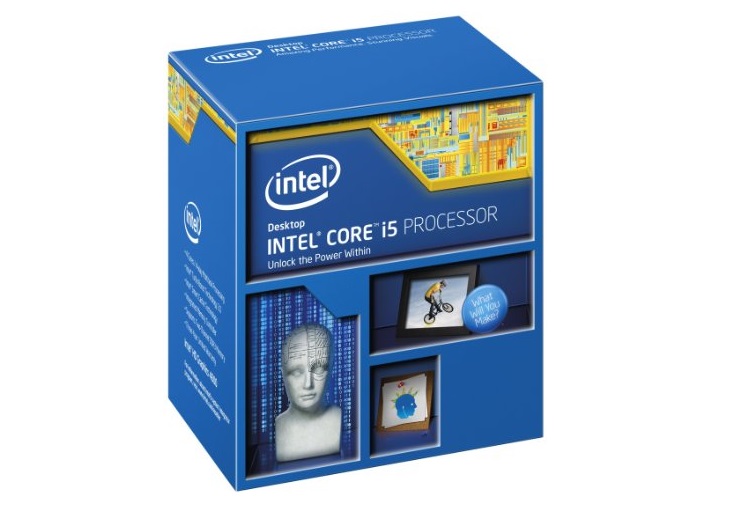
    As you’ve probably noticed by now, I think the Intel Core i5-4670K is by far the best mid-range to high-end gaming CPU you could get today. Based off Intel’s 22nm Haswell architecture, the Intel Core i5-4670K is a quad core CPU clocked at 3.4GHz with a turbo clock of up to 3.8GHz.
    While the Core i5-4670K doesn’t have 6, 8 or 12 cores, the Haswell architecture is about as good as it gets when it comes to single threaded IPC performance. Given that most games on the market aren’t optimized for more than 2-4 simultaneous threads, it’s much more important for a CPU to have that fast single threaded performance rather than a whole bunch of cores that sit idle.
    But, that’s not all. For an additional performance boost, we also went with a K series processor, which has unlocked multipliers for easy overclocking. By overclocking the CPU, we can see between 15%-25% performance boost depending on luck and cooling. While we didn’t add a CPU cooler to our build today for budgetary reasons, something such as low cost as the Cooler Master Hyper 212 EVO can easily be added to the system and would allow the Core i5-4670K to reach mild overclocks of 4-4.2GHz without issue.


    Motherboard - MSI Z87-G55

    msi-z87-g55-lga-1150-atx-motherboardFor our motherboard choice this month, we opted to go with the MSI Z87-G55, which is one of the best value motherboards currently on the market. MSI boards in the Intel 6 and 7 series generations were a bit more expensive than similar motherboards in competitor lineups, but with the 8 series chipset, MSI now has a very strong motherboard lineup that offers a lot of features for the price.
    Based off the Z87 chipset, the MSI Z87-G55 is a LGA 1150 socket motherboard which supports the latest 4th generation Intel Core processors such as the Intel Core i5-4670K. It features MSI’s new Military Class 4 features which include higher quality components such as super ferrite chokes, dark solid capacitors, Hi-C CAPs, DrMos4 mosfets, MSI’s Gen 4 fabric PCB and more for better durability, more precise power delivery and lower motherboard temperatures.
    Additional features include support for SLI/CrossFire multi-GPU configurations, 6x USB 3.0 ports (4x in the rear I/O, 2x internal header), 6x SATA 6Gb/s with mSATA SSD support, 3x PCIe x16 slots, and Gigabit ethernet.


    Memory - 8GB Corsair Vengeance DDR3 1600MHz Low Profile

    corsair-vengeance
    Unfortunately in 2013, we’ve seen memory prices go up a bit since they hit rock bottom in 2012, but it’s still not too bad which means our mid-range gaming system will still have access to a decent 8GB of memory.
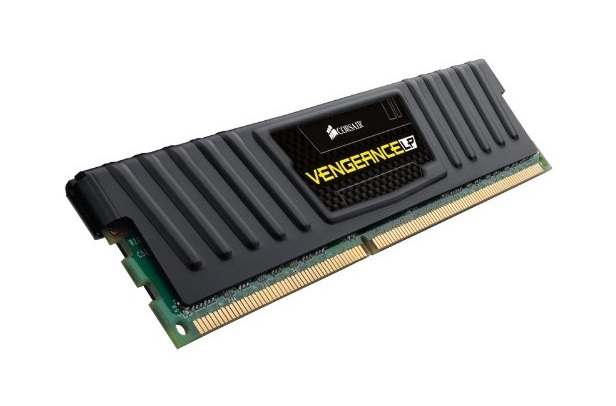
    For our gaming PC build today, we went with the Corsair Vengeance DDR3 1600MHz Low Profile kit, which we’ve had lots of success with over the past couple of years. It’s fast enough for what we’re doing, it looks pretty sweet, it doesn’t cost a whole lot, and it’s very reliable as well. Of course given the nature of computer components things may go wrong, but Corsair offers a lifetime warranty with the Vengeance kits to ensure that these sticks will last you at least until DDR4 or DDR5 becomes mainstream.
    Additionally, we also like the fact that the Corsair Vengeance Low Profile sticks use low profile heatspreaders. Low profile heatspreaders may not look as cool as their high profile counterparts, but they do remove the possibility of compatibility issues with monster CPU coolers like the Noctua NH-D14 if you choose to purchase one down the line.


    Case - Corsair Carbide Series 200R

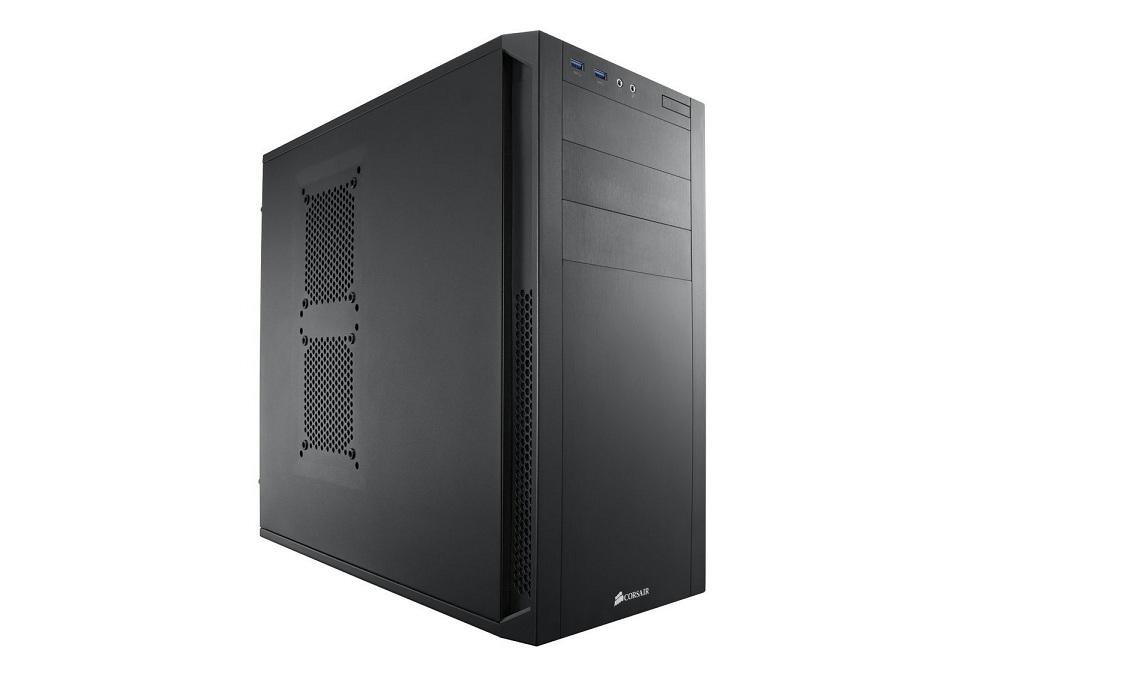
    corsair-200r-1In the budget range, it’s always difficult to find decent computer cases. Manufacturers generally tend to skimp on either features or materials in order to keep prices low, which sucks for those on a budget. However, one case that seems to buck this trend is the Corsair Carbide 200R. With the Carbide 200R, Corsair is capable of offering a case that has all the features you need, yet are still capable of maintaining a build quality that’s far from being plain “cheap”.
    The Corsair Carbide 200R is pretty much Corsair’s entry level mid-tower case which is capable of supporting ATX and mATX motherboards. Features wise, it contains room for 7 expansion slots, up to 8 fans for tons of cooling capacity, front panel USB 3.0 support, lots of cable management options, and support for GPUs up to 430mm.  There’s also room for a whopping eight disk drives and three 5.25″ drives as well for plenty of upgradeability down the line. Additionally, the Corsair Carbide 200R is extremely easy to build into with its completely tool-less design making it a perfect case for first time builders and veterans alike.


    GPU - ASUS GeForce GTX 660 DirectCU II Overclocked

    asus-geforce-gtx-660-directcu-ii-overclocked-gpu
    While we did consider the Radeon R9 270 for our gaming PC build this month, with the Bitcoin/Litecoin/Dogecoin what have you crypto-currency mining craze making it quite difficult to find stable stocks of AMD graphics cards these days, we’ll instead be going with the ASUS GeForce GTX 660 DirectCU II Overclocked edition graphics card. The GeForce GTX 660 is more than capable of playing even the latest games at high to ultra settings at 1080p resolutions and with ASUS’s factory overclock and DirectCU II cooler, you can expect the card to be not only fast, but relatively quiet as well.
    While the GTX 660 is a previous generation graphics card and we’re not huge huge fans of recommending previous generation GPUs when new ones are available, the GTX 660 is unique in that Nvidia has continued the GTX 660 alongside the GTX 760 with the GTX 760 serving as more of the “GTX 660 Ti” equivalent type of product. Those looking for a system with more powerful graphics can step up to a GeForce GTX 760 for about a 15%-20% increase in performance, but it’ll run you an extra $40-$50. 


    Storage - Western Digital Black 500GB Hard Drive

    western-digital-black-hard-drive-openFor any new builds these days, my preference is to start off with either a 240GB+ SSD or a 120GB SSD + 500+GB HDD combo. For those with larger budgets, I generally recommend going with a single 240GB+ SSD while those with smaller budgets can get a 120GB SSD and pair that with a 500+GB HDD which serves as a storage drive.
    Since our budget was limited in this case, I opted for a single WD Black 500GB hard drive. The WD Black is that it’s one of the fastest consumer 7,200 RPM hard drives on the market and it also carries a 5-year warranty, so short of a prosumer or enterprise 10,000RPM+ hard drive, the WD Black is about as good as it gets for a traditional spinning disk. That said, if you do have the budget left over, I’d definitely recommend picking up a Samsung 840 EVO SSD. The Samsung 840 EVO is a great SSD that’s not only a strong performer, but it also carries Samsung’s tier 1 reliability and extremely competitive pricing, generally retailing in the $0.60-$0.65/GB range.

    Now the reason why I decided to compromise the most on storage in order to fit the budget is because storage is probably the easiest component to upgrade. Simply purchase a new SSD, clone the original hard drive, and you’re good to go. You can even use the hard drive as a storage drive for games, pictures, or movies once the upgrade is complete.


    Optional Components

    Some readers have expressed interest in monitor, speaker, mice and keyboard suggestions, so we’ve also started including some recommendations for these items as well. I won’t be explaining the choices as these optional components are quite dependent on the purpose of PC (For example, someone serious about audio may end up going with something like an Audioengine 5+ paired with an ASUS Xonar Essence STX), but here are some suggestions that are a good fit for this build based on the system’s budget.
    Monitor Dell E-Series E2414Hr 24-inch Monitor
    Sound Card Creative Sound Blaster Z
    Speakers Logitech Z623
    Headset Razer Kraken Pro
    Mouse Razer DeathAdder 2013
    Keyboard Razer BlackWidow Ultimate
    Remember, if you have any questions, need some help, or need to fit the build into your budget feel free to visit the forums! Myself, or the community will be more than happy to help you out with your own custom build or answer any computer questions you may have. If this build doesn’t fit your needs, be sure to drop by our Computer Builds section to find more computer builds. If you spot any issues with our build such as GPU/case incompatibilities, cooler/case incompatibilities, etc. please let us know as well so that we may update the article.
    Also, be sure to join us on Facebook, Twitter, Google Plus, or YouTube to be updated on the latest news, reviews, tutorials, custom computer builds, and more!


    Plug

    Help Us, Help You!

    Every month, we spend a ton of our valuable time researching and writing up what we think is the best build you can buy for the money. We are very passionate about what we do and really enjoy spending our time helping you make the best buying decisions possible, but unfortunately passion and enjoyment doesn’t necessarily bring in much return.
    If you appreciate what we do and want to help us continue doing what we do, simply hit any of our Amazon links on this page prior to purchasing anything from Amazon. It doesn’t cost you anything to do so, but it does give us a small return on every purchase you make. This allows us to pay for website hosting costs, expensive testing equipment, and hopefully a growing number of contributors down the line.

    LIKE US ON FACEBOOK